Codex
Basics
Section titled “Basics”- Typing
/statusin the desktop app will show you your quota usage directly in the window. - OpenAI occasionally grants “reset tokens” (formally “usage limit resets”). The only official communication I could find on them is this tweet. In the desktop app, you can see when they expire by expanding your usage:
-
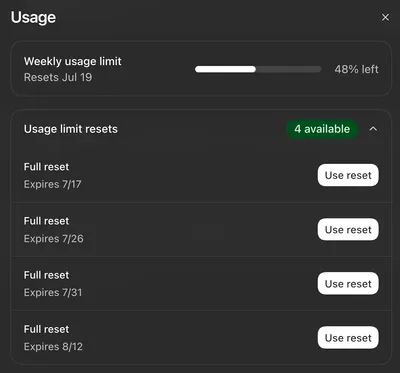
- To get the exact expiration times, run this privately:
curl 'https://chatgpt.com/backend-api/wham/rate-limit-reset-credits' -H "Authorization: Bearer $(jq -r '.tokens.access_token' "$HOME/.codex/auth.json")" -H "ChatGPT-Account-ID: $(jq -r '.tokens.account_id' "$HOME/.codex/auth.json")" -H "originator: Codex Desktop"
- To get the exact expiration times, run this privately:
- Using one only resets your quota, not the reset date. For example, if you have 5 days remaining in the week and use a reset, you’ll still have 5 days remaining.
-
- If you’re ever trying to use quota, consider identifying areas for refactoring in your code.
Changing reasoning levels between planning and implementation
Section titled “Changing reasoning levels between planning and implementation”When you see this prompt: 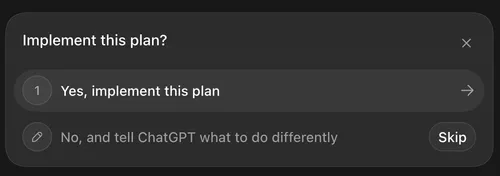
…choose “No”. Then, change the reasoning level as you normally would and type “Implement the plan.”
Acting on notifications
Section titled “Acting on notifications”I haven’t actually done anything here yet, but HiDeoo told me about this:
HiDeoo: @AdamLearnsLive In case you didn’t know, in the codex config, there is a
notifyoption where you can specify a path to a script that will trigger for the same event you have notifications, and you can use AppleScript to spawn an alert or w/e in it. ( HeyGuys btw)
Permissions
Section titled “Permissions”Allowing specific executables
Section titled “Allowing specific executables”You can modify .codex/rules/default.rules (reference), e.g.:
prefix_rule(    pattern = ["/Applications/Godot.app/Contents/MacOS/Godot"],    decision = "allow",    justification = "This is a Godot project; allow running Godot.",)
prefix_rule(    pattern = ["dotnet"],    decision = "allow",    justification = "Allow dotnet commands for this project.",)
Granting narrow networking permissions
Section titled “Granting narrow networking permissions”I was running into an issue with my C# build where the sandbox was unable to contact the NuGet API to detect vulnerabilities. I wanted the AI to be able to act on these warnings, but I didn’t want to grant blanket networking permissions. I added this to config.toml:
[sandbox_workspace_write]network_access = true
[features.network_proxy]enabled = trueallow_local_binding = false
[features.network_proxy.domains]"api.nuget.org" = "allow"
See this page for more information about network access, including why they consider this to be an elevated risk.
Granting permission to write temporary files
Section titled “Granting permission to write temporary files”When working with Godot and C#, Codex would often ask me whether it has permission to modify /private/tmp to create and edit .gd files to validate Godot behavior. I wanted it to have this permission permanently, but AGENTS.md is not the place to do it. Instead, here’s what I did:
- Make a
.codexdirectory under my Godot project folder. - Make
AGENTS.mdandconfig.tomlunder it:
AGENTS.md:
- Use `/private/tmp/codex-my-game-gd` for temporary `.gd` scratch filesconfig.toml:
approval_policy = "on-request"default_permissions = "my-game-temp-gd"
[permissions.my-game-temp-gd]description = "Workspace write plus disposable Godot temp scratch."extends = ":workspace"
[permissions.my-game-temp-gd.filesystem]"/private/tmp/codex-my-game-gd" = "write"
Using worktrees
Section titled “Using worktrees”- Testing changes from a worktree:
- Option 1: commit and cherry-pick
- Click “Commit”. Codex will make a new branch.
- Merge in the changes from that branch:
git merge --squash codex/NAME-OF-BRANCH- This will leave the files in an uncommitted state for you to review them and test them out.
- Note: you could cherry-pick (
git cherry-pick -n codex/NAME-OF-BRANCH), but it will only pull in the tip, so if you have Codex make future commits to that branch, you could end up with merge conflicts.
- Option 2: hand off to a new branch
- Click this to pull the changes Codex made into your local checkout:
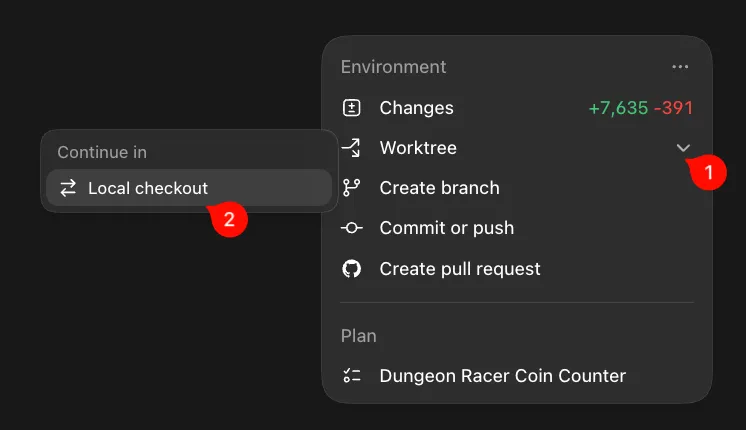
- Then, click “Hand off” in the resulting dialog.
- You’ll then be on the branch that Codex made, meaning the changes from Codex would already have been committed. You have a few options for getting this code back to your starting branch:
- Option 1:
git stash push -u -m "Codex hand-off" && git switch YOUR_ORIGINAL_BRANCH && git stash pop - Option 2: commit on the new branch, then
git switch YOUR_ORIGINAL_BRANCH && git merge --ff-only CODEX_BRANCH
- Option 1:
- Click this to pull the changes Codex made into your local checkout:
- Option 3: I had AI write a
mergeCodextool; simply run it from anywhere and it’ll guide you through the steps.- Alternatively, if you finished a worktree and want to merge it back to
main, this alias is good (it just switches tomainand merges the branch you were last on, which should be the Codex worktree):git config --global alias.mergemain '!git switch main && git merge @{-1}'git mergemain
- Alternatively, if you finished a worktree and want to merge it back to
- Option 1: commit and cherry-pick
- “Backgrounding” a worktree
- Suppose you have two agents:
agent-firstis working in branchcodex/firstandagent-secondis working incodex/second.- You hand off
codex/firstto your local checkout. - You discover a problem with it and ask AI to fix it.
- While waiting, you want to take a look at
codex/second.
- You hand off
- To accomplish this, click “Local” under “Environment”, then hand off back to
codex/first. You can choose which branch the local workspace should switch to (usuallymainfor me).- After this is done, you can give
agent-firstmore work. If you do it while the agent is working, it’ll abort the current turn.
- After this is done, you can give
- Suppose you have two agents:
- Deleting old worktrees
- Worktrees can take up a decent amount of space depending on what you’re doing (
du -sh "${CODEX_HOME:-$HOME/.codex}/worktrees"will tell you how much; it’s 2.8 GB for 18 worktrees for me). Codex has an option to only retain the most recent 15 by default (although it’ll still retain workspaces from pinned tasks).
- Worktrees can take up a decent amount of space depending on what you’re doing (
- Worktrees with submodules
- Handing off to a local branch doesn’t pull in submodule changes. E.g. below is what I would have to do with my game repo and translations submodule (the
--checkcommand will ensure the patch it makes is applicable). However, I had AI write a Git alias to a Python script to make this easier.Terminal window git -C /path/to/codex-worktree/Game/Submodules/translations \diff --binary HEAD > /private/tmp/translations.patchgit -C Game/Submodules/translations \apply --check /private/tmp/translations.patchgit -C Game/Submodules/translations \apply /private/tmp/translations.patch
- Handing off to a local branch doesn’t pull in submodule changes. E.g. below is what I would have to do with my game repo and translations submodule (the
Pruning old worktrees
Section titled “Pruning old worktrees”Worktrees are done in Git branches, and eventually, you may find yourself with many Codex-based branches. Here’s a command that will list the branches that haven’t had commits in the last two weeks:
git for-each-ref refs/heads/codex/ --sort=committerdate \ --format='%(committerdate:unix)%09%(committerdate:iso8601)%09%(refname:short)' |awk -F '\t' -v cutoff="$(date -v-14d +%s)" '$1 < cutoff {print $2 "\t" $3}'Example output:
2026-06-11 10:00:25 -0700 codex/clear-topdown-room-state2026-06-12 09:45:55 -0700 codex/base-monster-types2026-07-16 11:54:24 -0700 codex/add-coin-counter-uiIf you don’t want any branch from that list, you can run this to delete all of the branches:
git for-each-ref refs/heads/codex/ \ --format='%(committerdate:unix)%09%(refname:short)' |awk -F '\t' -v cutoff="$(date -v-14d +%s)" '$1 < cutoff {print $2}' |while IFS= read -r branch; do git branch -d "$branch"doneStupid manual steps
Section titled “Stupid manual steps”These notes are probably worthless for most people; see the parent header for “good” notes.
- Testing changes from a worktree
- First, look at where the worktree is on your filesystem through Codex. You should be able to click “Worktree created”, then you’ll see a path like this:
/Users/adam/.codex/worktrees/fbf2/StuckInABrokenTutorial - Switch into that directory
- Run any repo-initialization tasks → build → run. E.g. for me:
git submodule update --init --recursive --remotecd game$GODOT4 --import ./$GODOT4 --path ./- NOTE: you can achieve this automatically by using Codex’s environments (Settings → Local environments → create one → choose it when making a new workspace)
- First, look at where the worktree is on your filesystem through Codex. You should be able to click “Worktree created”, then you’ll see a path like this:
- If Codex has uncommitted changes in a worktree and you want to see them in your current branch (e.g. to diff them), I think it’s best to just commit the files directly from Codex (click “Commit or push”), then do the following:
- Get the path of the worktree:
git worktree list | grep NAME-CODEX-GAVE-IT - Get the commit hash:
git log -1 - Cherry-pick it into your repo:
git cherry-pick -n COMMIT_HASH- The
-nmeans that it won’t commit in your local repo; it’ll just make the changes to the underlying files.
- The
- Get the path of the worktree:
Troubleshooting
Section titled “Troubleshooting”Can’t use workspaces
Section titled “Can’t use workspaces”E.g. I would get an error like this:
Error starting task
failed to load configuration: default_permissions requires a "[permissions]" table
It turns out this is because I had a custom config.toml ignored by Git. In my particular case, I didn’t want to commit these files, so I used Codex’s .worktreeinclude file (reference) in the root of the repo.
Can’t hand off a workspace locally
Section titled “Can’t hand off a workspace locally”I got an error like this: Branch “codex/add-knight-enemy” already exists at a different commit
This was my own fault; I had added knights to one area of my game and later wanted to add them to another. Codex coincidentally used the same branch name. I renamed the old branch and I could check out locally just fine: git branch -m codex/add-knight-enemy codex/old-add-knight-enemy
(see Pruning old worktrees for how to get rid of the old branches so that this doesn’t happen again)
Can’t access ~/Downloads on macOS
Section titled “Can’t access ~/Downloads on macOS”- Codex says the OS is returning “Operation not permitted”.
- Settings → Privacy & Security showed “Full Disk Access” grayed out under ChatGPT.
- I had to go to Privacy & Security → Full Disk Access, toggle it on for ChatGPT, restart ChatGPT, and then it worked.