AnimationPlayer and AnimationTree
AnimationTree Overview
Section titled “AnimationTree Overview”AnimationTree in Godot can be used to control and transition between animations.
As an example scenario, suppose you buy a spritesheet like this. The character has an idle animation, they can jump, attack, walk, run, etc. I used a subset of these and ended up with this AnimationTree: 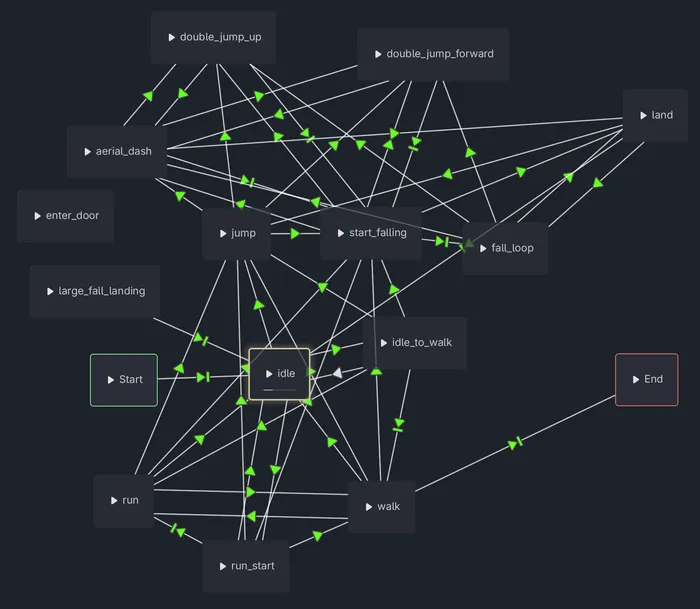
Usage tips
Section titled “Usage tips”General tips
Section titled “General tips”- Hotkeys
- ⌥⇧[A or D]: go to prior/next keyframe.
- Cleaning up the trees: you should be able to have “sub” trees. I haven’t done this myself yet, but it’s worth noting for the future.
- To change an
AnimationPlayer’s FPS after already laying out the frames, the easiest thing to do is select all of the keyframes, then click Edit → Scale Selection… E.g. if you have frames laid out every 0.1 seconds (which would be 10 FPS) and want them to be every 0.05 seconds (20 FPS), you would set a scale factor of 0.5.- You could also add a
BlendTreein anAnimationTreeand have your animation going to a TimeScale node and then eventually into Output.
- You could also add a
- Animating sprites
- IMO, it’s best to use
AnimatedSprite2Donly for very simple scenarios, e.g. 4-way walking animations that you switch between from code. When you have more complexity than that, you would use anAnimationTreewith anAnimationPlayerand aSprite2D(not anAnimatedSprite2D—my rationale against using them is that you wouldn’t want to confuse someone else in your codebase who thinks the animations are coming fromAnimatedSprite2Dinstead ofAnimationPlayerandAnimationTree).
- IMO, it’s best to use
AnimationTreelets you use conditions in a very basic way or expressions in a more advanced way. If using expressions, you have to manifest the variables yourself (they can beprivateproperties in C#) and then only use expressions (I believe). As a result, I don’t think conditions have much of a purpose to exist given that expressions exist (they’re probably only for very simple scenarios).- Suppose you are animating a cut-scene and you want to make an
AnimatedSprite2Dwalk right, then walk up, then walk left (i.e. it would use three animations). You could set theanimationproperty from anAnimationPlayeror even call theplaymethod, but neither of those would show any change while in the editor. Instead, you would have to change theframeof anAnimatedSprite2D. If you have anAnimationPlayerand/or anAnimationTreeset up already, then you can have oneAnimationPlayerplay the animations from another viacurrent_animation(you may need to click theAnimationTreeso that it doesn’t play out its own animations).
Adding animations when using AnimationPlayer and AnimationTree
Section titled “Adding animations when using AnimationPlayer and AnimationTree”Note: it may be better to use this addon.
- This isn’t super obvious because the tree sort of “fights” you as you try changing things.
- Click the
AnimationTreein the scene hierarchy - Make sure to select “Animation” at the very bottom, which will show you a dummy copy of the
AnimationPlayer. - Click the ⏹️ button to stop any animations from playing.
- Click “Animation” in the dummy
AnimationPlayerand add a new animation. - Click the
Sprite2Dthat you want to animate. TheAnimationPlayerwill remain open in the bottom panel. - Set its texture
- Under
Animationin the Inspector, set how many columns and rows you have (HframesandVframes). - Click the 🔑 icon next to the following and in this order:
- Hframes
- Vframes
- Texture
- Frame
- Set the “Nearest FPS” at the bottom of the
AnimationPlayerbased on how far apart you want the frames. E.g. at 10 FPS, you would set this to 0.1. - Set the Animation length at the upper right of the
AnimationPlayerto be the total duration of the animation. If you have 16 frames and want them to run 0.1s apart, you would set this to 1.6. - Click the key next to “Frame” until you have all of your frames in the
AnimationPlayer
- Click the
Idiomatic usage of AnimationNodeBlendSpace2D
Section titled “Idiomatic usage of AnimationNodeBlendSpace2D”Here’s a pretty common scenario in a lot of games: you have a spritesheet with animations for three directions representing many different actions (e.g. idle, walking, attacking, etc.). You want to pick the right animation depending on which direction you’re facing, and you want the fourth direction to be a horizontal flip of an existing one.
This setup worked pretty well for me:
- Scene tree:
Sprite2D- this is what we’ll animateAnimationPlayer- this contains animations for the spriteAnimationTree- this controls theAnimationPlayerfor theSprite2DAnimationNodeStateMachine- (note: this is within theAnimationTree, not in the scene hierarchy itself) - this will have high-level states likeidleandwalkwith transitions between them.AnimationNodeBlendSpace2D- add one of these for each high-level state
Within the AnimationNodeBlendSpace2D, right-click the background and add animations as shown: 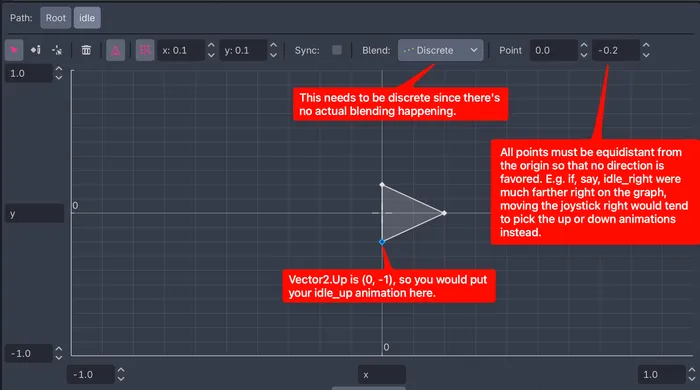
Then, through code, do something like this:
using System;using Godot;
namespace Game.SubGames.FarmingGame;
public partial class FarmingPlayer : CharacterBody2D{    private AnimationTree _animationTree = null!;    private AnimationNodeStateMachinePlayback _playback = null!;    private Vector2 _priorCardinalDirection = Vector2.Down;    private Sprite2D _sprite = null!;
    public override void _Ready()    {        _sprite = GetNode<Sprite2D>("%Sprite");        _animationTree = GetNode<AnimationTree>("%AnimationTree");        _playback = (AnimationNodeStateMachinePlayback)_animationTree.Get("parameters/playback");    }
    public override void _PhysicsProcess(double delta)    {        var direction = Input.GetVector(            "ui_left",            "ui_right",            "ui_up",            "ui_down"        );
        var cardinalDirection = _priorCardinalDirection;
        if (!direction.IsZeroApprox())        {            if (MathF.Abs(direction.X) > MathF.Abs(direction.Y))            {                cardinalDirection = new Vector2(direction.X, 0);            }            else            {                cardinalDirection = new Vector2(0, direction.Y);            }
            _priorCardinalDirection = cardinalDirection;
            const float speed = 40f;            Velocity = cardinalDirection * speed;        }        else        {            Velocity = Vector2.Zero;        }
        var isFacingLeft = cardinalDirection.X < 0;        _sprite.FlipH = isFacingLeft;        var facing = isFacingLeft ? Vector2.Right : cardinalDirection;        var isWalking = !Velocity.IsZeroApprox();        _playback.Travel(isWalking ? "walk" : "idle");
        _animationTree.Set($"parameters/{_playback.GetCurrentNode()}/blend_position", facing);
        MoveAndSlide();    }}
Troubleshooting
Section titled “Troubleshooting”Syncing start-of-animation properties
Section titled “Syncing start-of-animation properties”Scenario:
- I had a character that could move in 8 directions. this character has a gun.
- Depending on where they’re facing, the gun would be in a different position (obviously).
- I had the
AnimationPlayerupdate the gun’s muzzle position at the beginning of each animation.
The problem I ran into is: when rapidly moving and shooting, the bullets would fire from a stale muzzle position. The solution is not to call await ToSignal(GetTree(), SceneTree.SignalName.ProcessFrame);! Instead, we do this right before creating a bullet:
// Apply the animation state and blend position set earlier this physics frame before reading the muzzle._animationTree.Advance(0);This forces the underlying AnimationPlayer to set any properties that should have already been set.
set_frame: Index p_frame = 6 is out of bounds (vframes * hframes = 6).
Section titled “set_frame: Index p_frame = 6 is out of bounds (vframes * hframes = 6).”If you get this error:
E 0:00:20:0247 set_frame: Index p_frame = 6 is out of bounds (vframes * hframes = 6).…make sure to put “frame” at the bottom of the animation player (reference): 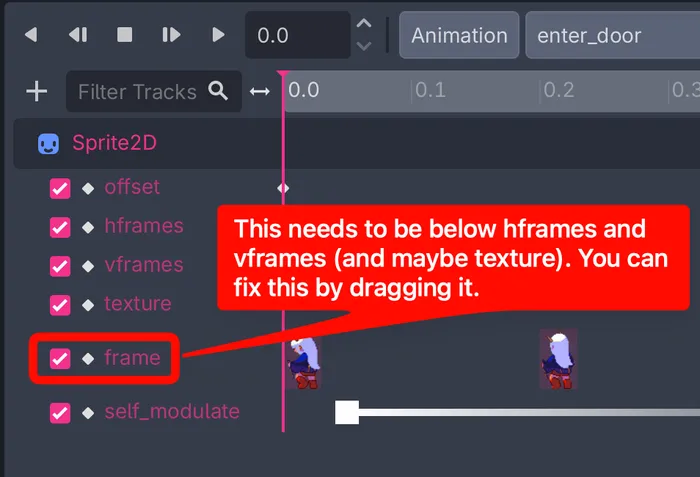
Looped transitions
Section titled “Looped transitions”E.g.:
W 0:00:02:820 _transition_to_next_recursive: AnimationNodeStateMachinePlayback: parameters/playback has detected one or more looped transitions in a single frame and aborted to prevent an infinite loop. You may need to check the transition settings. <C++ Source> scene/animation/animation\_node\_state\_machine.cpp:938 @ _transition_to_next_recursive()This happens when you have something like this:
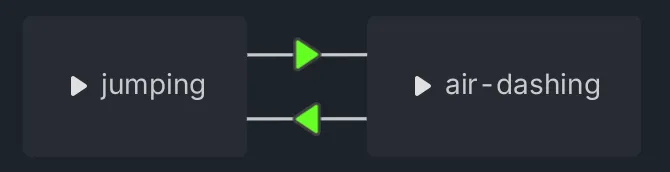
The problem is that both states have their conditions met to go to the next state, which would mean that the transitions would never stop. This can also happen when you have more than two states as long as there’s any infinite loop.
To figure out which transition is causing this, you can change the transition’s Advance mode (advance_mode) to Disabled, and if it stops happening, then it was probably that one. 😛 Then, to fix it, you either need to change your condition or change your code.
For example, in the picture above, I originally had a condition of IsAirDashing to go to the “air-dashing” state and IsJumping to go to the “jumping” state. To fix this, I changed one condition to !IsAirDashing && IsJumping.
In another case, I changed the code to prevent both booleans from being true at the same time.
GetCurrentNode doesn’t update synchronously
Section titled “GetCurrentNode doesn’t update synchronously”AnimationNodeStateMachinePlayback playback = (AnimationNodeStateMachinePlayback)_animationTree.Get("parameters/playback");// Suppose playback is in the "idle" stateplayback.Travel("walking");
// At this point, playback.GetCurrentNode() will still say "idle" even though you just changed itTo work around this behavior, you could just keep track of what should be the current node yourself. Alternatively, you could wait for a frame.