Physics interpolation
Godot physics interpolation
Section titled “Godot physics interpolation”Overview
Section titled “Overview”- What it is (reference): a way to render frames with interpolated positions without having to do extra physics calculations each frame.
- I suspect that most games should have physics interpolation turned on by default (reference). This means that most nodes should prefer
_PhysicsProcess, butCameras in particular should use_Process(reference).
- If you ignored physics interpolation and instead put all game-updating logic in
_Process, you shouldn’t hit issues around jittering, but:- You’d be doing way more work than you should since
_Processis called once per frame, and some monitors run at high framerates, whereas physics ticks are typically 30-60 times per second. - Your game may run differently for different users since then physics would be tied to the framerate. E.g. if you set
physics_ticks_per_secondto 5 or 10 and had game updated in_PhysicsProcess, you would very likely see your game play out very differently.- If you put everything in
_PhysicsProcessalready and think your game looks great, try cutting the physics ticks in half and see if it still looks great. If it doesn’t, then you’ll probably want interpolation since it means someone with 2x the refresh rate of your monitor would see the same general issues (albeit you eventually push the limits of human perception, so going from 240hz → 480hz probably wouldn’t result in a noticeable change if your physics were running at 240 ticks per second to begin with).
- If you put everything in
- You’d be doing way more work than you should since
- Try your game on a monitor with a refresh rate >60Hz so that you can see what it’s like when the FPS far exceeds the tick rate. It uncovers issues pretty rapidly.
- When testing physics interpolation, you basically have to try changing the physics ticks to a very low number (5-10) so that mistakes become obvious.
- Sometimes, it’s easier to just turn off physics interpolation and run everything in
_Process. E.g. I did this in cut-scenes for Skeleseller since there’s no user input (other than being able to skip the entire cut-scene). - You have to call
ResetPhysicsInterpolationon any objects that “teleport” right after changing their transform.- In 2D, you don’t need to do this when a node enters the scene tree (reference), only if you position it through code right after doing that.
- Things that move at a very high speed (e.g. shooting bullets at an enemy) should either have custom interpolation, a high physics tick in the project to accommodate their speed, or they should have their updates run on
_Processand have interpolation turned off. E.g. if you have the physics tick to 1 and shoot a fast bullet at an enemy, you’ll see it appear as soon asAddChildis called, then it won’t have its position updated for upwards of an entire second. It may have moved to the enemy in that time, in which case its collision event will happen and it’ll explode or otherwise get removed from the scene. You wouldn’t have seen this movement though since the interpolation relies on rendering frames in between physics ticks.
Troubleshooting
Section titled “Troubleshooting”Input is happening at odd times
Section titled “Input is happening at odd times”Some signals/events happen only at the frequency of physics ticks. For example, CollisionObject2D.MouseEntered will only get emitted at most ticks times per second. However, _UnhandledInput on any node will happen as soon as you press the key, and Control.MouseEntered will happen immediately as well.
So if all you want is MouseEntered to happen at a higher frequency, put it in Control.MouseEntered.
Position something synchronized with a camera
Section titled “Position something synchronized with a camera”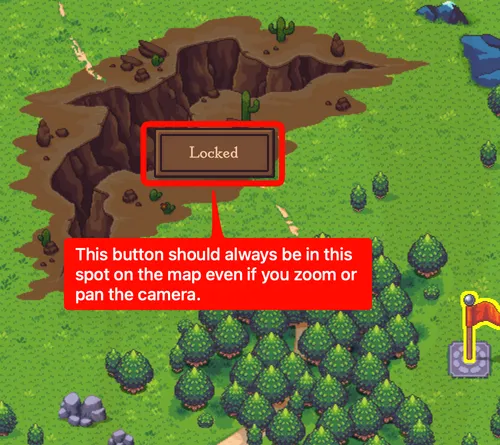
E.g. in Skeleseller, we have a battle map that you can pan/zoom using a Camera2D. We also have a Button that should remain in the same world location but renders in screen space. If we put code to update position in the Button’s _PhysicsProcess, then the button could look like it “lags” behind the camera movement.
Instead, our fix was to disable physics interpolation for both the Camera2D and the Button and update the position in _Process.
Synchronizing a camera with an interpolated node
Section titled “Synchronizing a camera with an interpolated node”This is like the flip side of Physics interpolation#Position something synchronized with a camera, which is that you have a node that is moving through your game world and you want the camera to stay fixed on their position as they move. E.g. we do this in the Skeleseller tutorial when the camera tracks an adventurer walking to the portal. The adventurer is being controlled from _PhysicsProcess, meaning its position is only being set ticks_per_second times per second. If you set ticks_per_second to a low number like 5, the camera will jitter due to the low frequency.
The fix I applied was to enable position_smoothing_enabled while tracking an entity, which is built-in to Camera2D. That way, the camera will smoothly interpolate between any two positions even though it’s operating without physics interpolation.
Physics interpolation isn’t working for a node
Section titled “Physics interpolation isn’t working for a node”In my case, it was always because it or an ancestor in the hierarchy had turned off physics interpolation. All Control nodes default to off.
Likewise, if physics interpolation is on for a node where you don’t expect, then it may be the opposite problem. E.g. all SubViewport nodes default to having it on.