Rider
Random setup notes
Section titled “Random setup notes”I went through a marathon of setting Rider up, and I don’t think some of these notes may matter again in the future, but here they are anyway.
- Open in VSCode: add an external tool for this; it’s dead simple. The arguments you want are
--reuse-window --goto $FilePath$:$LineNumber$:$ColumnNumber$. - To get proper doc-comment wrapping in C#:
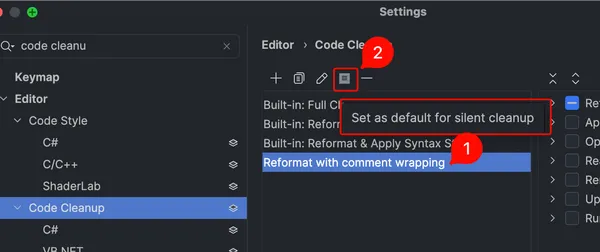
- Make a custom Code Cleanup profile
- Go to Settings → Editor → Code Cleanup
- Duplicate “Built-in: Reformat Code”
- In the duplicated profile, enable ”✅ Reformat embedded XML doc comments” under Reformat code → C#.
- Set that profile as the default silent-cleanup profile in that same dialog:
-
- Bind a key to “Silent Reformat and Cleanup”.
- Note: this will format the whole file unless you have a selection.
- Make a custom Code Cleanup profile
- Preventing leaking
.envfiles or other secrets (e.g. while streaming)- ⚠️ Note: even if you perform the steps below, reloading the IDE will reset the search scope, which means you could easily leak a secret.
- Deindex the files so that they don’t show in “Go to file”
- Right-click the file (or containing folder) in the Explorer view and choose [Edit → Exclude] or [Tools → Stop Index] (depending on whether you’re in the files or solution view).
- Hide the files from search. I think the only “easy” way to do this is with a custom scope.
- Open Find in Files
- Click “Scope” and then the ”…” button:
- Add a new scope with this Pattern:
!file:*.env*- Local just means it won’t go into version control (reference)
- Make sure to select the new scope that you added

Hot reloading
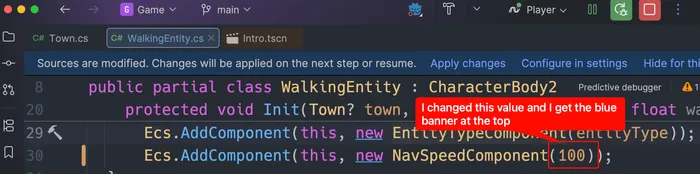
Section titled “Hot reloading”This is enabled by default in “automatic” mode. However, you still need to manually do something—either pause/resume execution, click “Apply changes”, or hit a breakpoint (and then resume execution).
Troubleshooting
Section titled “Troubleshooting”Files of certain types don’t show in the “Find in File…” dialog
Section titled “Files of certain types don’t show in the “Find in File…” dialog”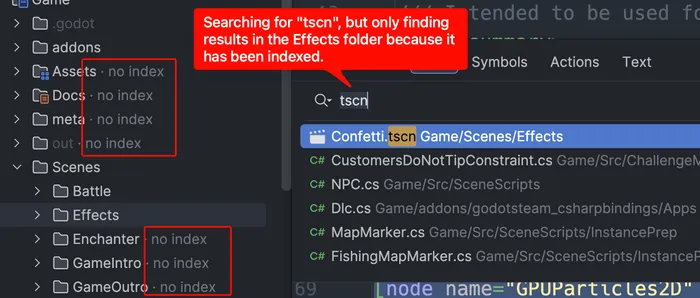
- Open the Explorer view
- Right-click a folder → Tools → Start Index
Commit messages don’t show warnings
Section titled “Commit messages don’t show warnings”First of all, you can configure these in Settings → Version Control → Commit → Commit message inspections.
It’s just a known bug that the warnings don’t show anywhere.
Inspections show up for scratch/buffer files
Section titled “Inspections show up for scratch/buffer files”This was pretty confusing to figure out:
- Go to Settings → Editor → Inspection Settings → Inspection Severity → Other Languages → Scroll WAY down to “Proofreading” (or just search for it in the inspection-specific search box).
- Click “Proofreading” so that you modify all of the sub-settings at once.
- Change “In All Scopes” to “Project Files”
- Uncheck “Everywhere else”
- Click the ➕ and add “Scratches and Consoles”
- Set its severity to “No highlighting (fix available)”
- Click the ⚙️ to “Edit Scopes Order…”
- Put “Scratches and Consoles” on top so that it takes priority.
Rider inspections are complaining about “Src” being in a namespace
Section titled “Rider inspections are complaining about “Src” being in a namespace”This is actually a general problem, which is that you don’t have a folder configured as a namespace provider. For example, I have the directory structure Game/Src/EntityComponentSystem/ComponentHolder.cs. In that file, I have this line:
namespace Game.Src.EntityComponentSystem; // Rider warns: "Namespace does not correspond to file location, must be: 'Game.EntityComponentSystem'"To fix this, all I had to do is right-click the Src folder from within Rider → Properties → ”✅ Namespace provider”.