General Steam notes for devs
Overview
Section titled “Overview”This note is typically about developing games for Steam, not about using the platform.
One-liners
Section titled “One-liners”- To find a user’s Steam ID, you can simply paste their URL into https://steamid.io/
- Download (kws: install, setup)
steamcmdfrom here. - Launch with the Steam console via either:
- Navigating to
steam://open/consolein your browser - Launching Steam with
-console
- Navigating to
- If you need to download your existing assets, it’s easiest through SteamDB (e.g. this link)
- To modify your community icon, use a link like this
- To see this, go to https://steamcommunity.com/ after clicking the hub for a game (e.g. this link)
- To modify your client icon, use a link like this
- To make GIFs, I highly recommend Gifski. It’s so easy, and you can preview export sizes to make sure you’ll fit Steam’s requirements.
- UPDATE: videos are now supported (reference), so just use video files.
- Revoke/ban a Steam key via this link (which is under Tools → Ban Steam Keys on Steamworks)
- To see traffic sources for your game, use a link like this.
- Curator Connect seemed like a waste of time for marketing a game. I researched it in early 2026, and reddit posts going back ~8 years all say it wasn’t worth it. Just reach out to press and influencers.
- Localizing the store page is as simple as going to Store Page Admin → Localization → download the JSON file for all languages, plug in the translations, then reupload.
- When you request release-state-override keys, the resulting keys will be in the package “YOUR_GAME_NAME for Beta Testing”; this is the normal way to share “release” keys before your game has actually launched.
- You can manually upload zipped build files to Steam via App Data Admin → SteamPipe → Web Uploads.
- Steam Cloud notes are here: Steam Cloud
- A Steam ID is a superset of the account ID. The account ID is just the lower 32 bits (e.g. take a look at the Go implementation). You only need the account ID when generating a unique local folder name.
- The easiest way to add a debug control for the Steam Deck is to add it like you’re adding it for a computer (e.g. type PgUp to activate a cheat) and then just remap one of the back buttons on the controller to the PgUp key.
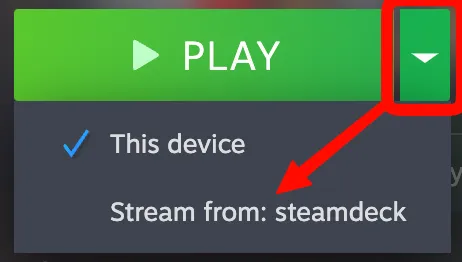
- The easiest way to stream gameplay (e.g. if testing the Steam Deck from a Mac) is to log in to the same account on both devices, then simply click the arrow to the right of “Play” on Steam and choose the remote device:
Playtests
Section titled “Playtests”Steam has a playtest feature (reference). There are two main ways to use this:
- Add a “Request Access” button to your Steam page that will allow people to sign up anonymously. From there, you can allow in some number of people.
- Give out playtest keys to specific people.
Assuming you have a demo online already, playtests takes slightly north of an hour since you have to make a new page, make new depots, upload assets, etc. You could probably speed that up if you know how to do this stuff without consulting notes/documentation.
Note: when setting everything up for the first time, I don’t think I properly had builds, but that doesn’t matter for the store review; the documentation says this:
The store review checklist for a Playtest only consists of capsule images and icons.
However, you also need them to review a build of your game.
Once your store page has been reviewed:
- Go to your main app → Store Page Admin → Special Settings → click the text link that says “click here to set up visibility” about halfway down the page. If you just want to give out keys:
- Set the visibility to “Hidden”.
- To give out keys, go to your playtest app’s App Data Admin → Manage Keys → Default Release Key. I chose “Giveaway” as the option and “Playtest” as the tag. Once you’re done requesting the keys, you’ll have to wait a day or two.
- Submit the build for review.
- This is required to set the playtest to playable (e.g. via this link).
Helpful tips
Section titled “Helpful tips”- Don’t use the same cover art in Steam for the playtest and the launch versions. For the playtest, add “PLAYTEST” or something to the graphic so that you can easily differentiate it on something like a Steam Deck. Otherwise, in the library view, there’s no way to tell which is which without going into the options/properties.
Curators
Section titled “Curators”These are just some random notes for myself. I was investigating whether some Steam curators are worth it, and I think some insights of when they’re not worth it are:
- “Reviews” that sound like they were just rewordings of the Steam description, e.g. “An action game where you do X for Y reason” instead of “The game is approachable while still being complex and rewarding”.
- They have little or no playtime in the games they’re reviewing (or no achievements for those games).
- The way I even found this curator’s Steam account in the first place was by looking at their discussion topics under the curator’s “About” section (although sometimes it’s obvious who they are from their avatar and number of games owned if you check the “Members” section). They had their entire playtime public, and they had 0 minutes logged in many games they played (or, say, 5 minutes, which means they could have just tried a demo).
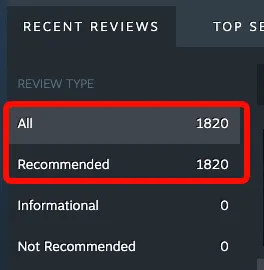
- They only recommend games. It’s just unlikely that they would like every single game they play.
Troubleshooting
Section titled “Troubleshooting”SteamCMD updates instead of running my command
Section titled “SteamCMD updates instead of running my command”If an update is available, then running commands will typically just automatically perform the update and then not run the command. It will exit with code 42 when this happens. What I’ve generally done is to run steamcmd --help just to make sure it’s up-to-date, then run my actual command.
SteamCMD fails with a generic “FAILURE” message
Section titled “SteamCMD fails with a generic “FAILURE” message”This was maddening:
ERROR! Failed to commit build for AppID 3838630 : Failure…but I finally found my specific cause: I was trying to upload to a branch named alphatest despite not having created that branch on Steamworks. You do this from the “builds” page (e.g. this). If it’s basically empty, then you need to upload a build to the default branch first. Once you have that, you’ll see:
Once the default branch has a current build set, you can create other branches.
…so make the build live, then you’ll see “Create new app branch”. You should probably password-protect this branch if it has your alpha builds on it.
The Mac version shows a warning right in Steam
Section titled “The Mac version shows a warning right in Steam”E.g. this: 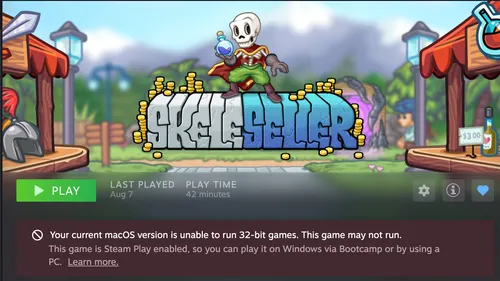
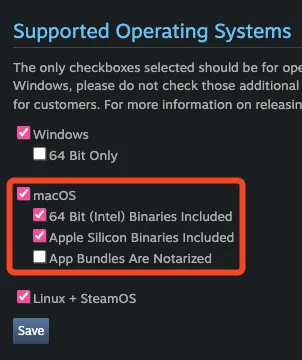
This is caused by not checking the right boxes on a page like this:
steamcmd says “Waiting for user info…ERROR! (Timed out)”
Section titled “steamcmd says “Waiting for user info…ERROR! (Timed out)””First, test steamcmd +login anonymous to see if it also times out. If so, it may be this issue, which I “solved” by closing Steam before running steamcmd. 🤷♂️
If things still don’t work and you’re using steamcmd because you desperately need to upload a build, upload .zip files manually via SteamPipe → Web Uploads (e.g. this link).
Web uploads fail
Section titled “Web uploads fail”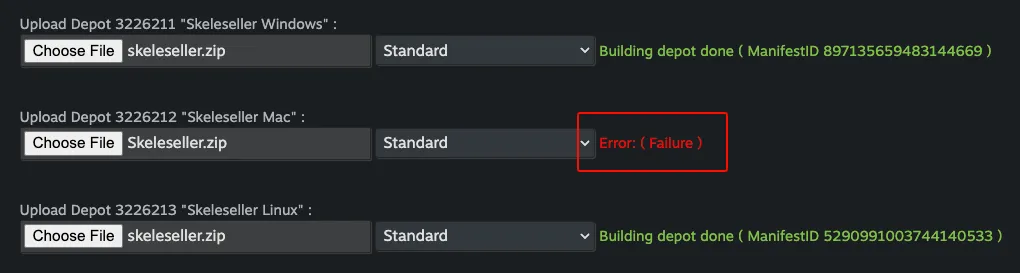
Just keep trying. 😭 This sucks and can happen many times in a row.
steamcmd +login hangs
Section titled “steamcmd +login hangs”Kws: freezes, lags
When this happened to me, it was because steamcmd was trying to ask my automated release tool for a password, but that didn’t show in my tool’s logs:
[2026-02-09 09:18:42] Loading Steam API...[2026-02-09 09:18:42] OK[2026-02-09 09:18:42] Cached credentials not found.[2026-02-09 09:18:42]password:I.e. the real issue is that the cached credentials aren’t found. Refresh them with steamcmd +login YOUR_USER_NAME and then manually type in the password. From then on, logging in with just the username should be fine.
Note: at the time of writing, I’m not positive about the reason why this has been showing up more frequently, but I think it has to do with logging in via multiple accounts that use the same Steam Guard device.
”Missing game executable” when launching from Steam
Section titled “”Missing game executable” when launching from Steam”E.g.: 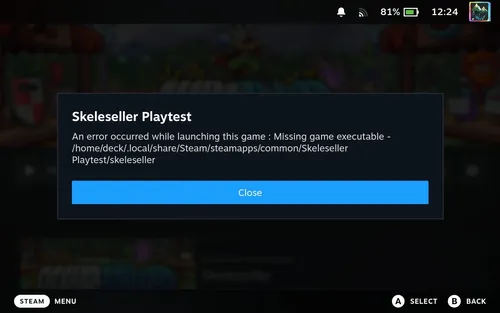
First, make sure you as a developer don’t get this issue.
- If you do get the issue, then I’m pretty sure it means that the file it’s looking for doesn’t exist (e.g. a bunch of people online had
Game.exe.exeand didn’t realize the double extension due to Windows’ default settings). - Even if you don’t get this issue, there may still be a problem! For example, in the case below, I’m guessing I was using the “Skeleseller Playtest Developer Comp” package, which did have all of the depots, but the “Skeleseller Playtest” package didn’t.
If players get everything to work through a compatibility layer like Proton, CrossOver, WINE, etc., then it points to you having a Windows depot but not Mac/Linux depots.
Anyway, as mentioned above, I had these packages set up:
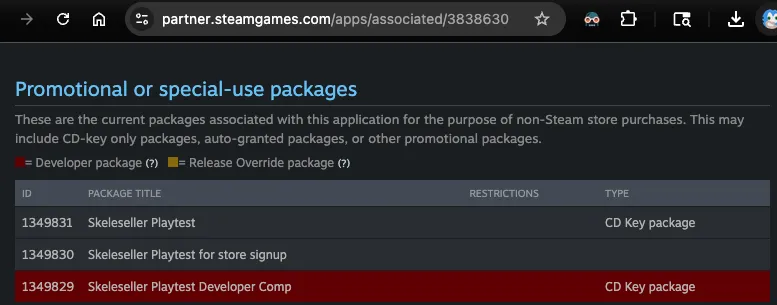
Clicking “Skeleseller Playtest” → “Add/Remove Depots” showed that not all of the boxes were checked:
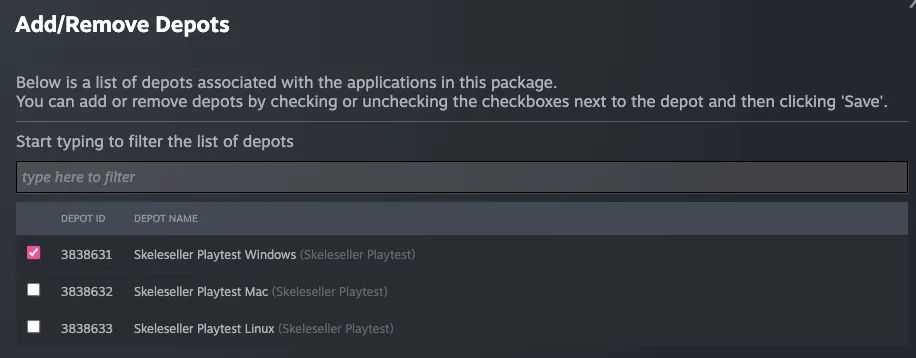
I just ✅‘d them all, published (which I don’t think was necessary), and it fixed the problem for people affected by this. Note that I had asked them to reinstall, but the installation still showed “0 B” at first and they had to restart Steam.
Note that I think you’ll see Note: this depot isn't referenced by any packages for this app. Please check your package configuration. right on the “Manage depots” page if this will be a problem.
Launching your prerelease version shows the playtest version running
Section titled “Launching your prerelease version shows the playtest version running”My scenario was this:
- Preconditions
- Skeleseller Playtest was out and installed on Steam
- Skeleseller (release) was not out but could still be installed on Steam
- I launch the release version
- 👍 The release binary opens (I know this because I have version numbers showing on the title screen).
- 👎 Steam shows the playtest version running
- 👎 Steam grants achievements for the playtest version
This is because your game specifies the wrong Steam app ID.
You can test whether you’ve fixed this without even uploading your build to Steam; just run it locally, and if Steam shows that the correct version of the game is being played, then you can upload it.
Checklist issues
Section titled “Checklist issues””Store And Devcomp Packages Match” (reference)
Section titled “”Store And Devcomp Packages Match” (reference)”To complete this checklist item:
- Go to a page like this and click “All Associated Packages, DLC, Demos And Tools”.
- Make sure to include the same depots in your devcomp package as you have in your release version.
Achievements or cloud saves
Section titled “Achievements or cloud saves”If you’ve added achievements or cloud saves to your game but it’s still showing in the checklist as incomplete, then you need to check the box for “Steam Achievements” (e.g. this link, which is via the dashbord → your gamme → Edit Store Page → scroll way down to “Supported Features”).