Steam Cloud
Working on a new project? Read these notes first
Section titled “Working on a new project? Read these notes first”Based on my experience adding Steam Cloud to Skeleseller, here are some learnings:
- Set up Steam Cloud before you get any real players so that you don’t need to mess around with dev-only settings and overrides like
testappcloudpaths. - Have your game save to a folder structure like this:
save_datasteamlocalsynchronized
itch(or some other non-Steam platform)localsynchronized
- Rationale:
- Separating Steam and non-Steam platforms means that other platforms can’t get their files overwritten by Steam Cloud.
- Separating synchronized from non-synchronized data makes it very easy to use Auto-Cloud.
- Similarly, by setting up a save structure that will be resilient to adding Steam Cloud, you won’t need to pair it with code changes, which may make your testing confusing (e.g. I would have local code to use Steam Cloud, then test on another device where it was still saving to non-cloud paths, then I wondered why things weren’t working 🤦♂️).
General notes
Section titled “General notes”- Documentation
- If Steam isn’t running, you won’t be able to get the player’s Steam ID. This makes sense since we wouldn’t know which user you should be logged in as.
- You can use SteamDB to view any other game’s cloud configuration, e.g. Rogue Legacy 2 (it’s in the “Cloud saves” section)
- Players can disable Steam Cloud altogether or for specific games. In those cases, as long as Steam is running, you’ll still be able to get their Steam ID and save to a user-specific location, it just won’t sync it with the cloud.
- You can check what’s in your cloud storage on this page: https://store.steampowered.com/account/remotestorage
- You can scope to specific apps with
?appid=APP_IDat the end of the URL.
- You can scope to specific apps with
Launching from outside of Steam
Section titled “Launching from outside of Steam”Steam Cloud works even if you launch your game through, say, VSCode or Godot, or even if you launch your .exe directly. You just need Steam to be running, and the Steam API needs to be initialized with the correct app ID.
Auto Cloud specifically will only save correctly in this scenario, not load. Here’s what that flow looks like:
- You launch the game from outside of Steam
- Something inside your game will initialize Steam with the app ID
- At this point, if you’re using Auto Cloud, I don’t believe Steam will try downloading files from the Cloud since I think Steam has to handle that before your game has started, but you started it from outside of Steam yourself.
When closing the game (with Auto Cloud enabled), it will indeed sync any changes that occurred back to the cloud.
The only scenario this really affects is when you launch from outside of Steam with Auto Cloud enabled and your local save folder doesn’t match the remote save folder. Since Auto Cloud won’t download the files, this means that it’ll just use whatever was in the directory to begin with, which could be out-of-date or absent.
Shared Cloud Storage
Section titled “Shared Cloud Storage”If you have a demo and you want save data to persist to the release version of the game, then you need to modify the “Shared cloud App ID”. The documentation says this (emphasis mine):
You are able to share Cloud storage space between two app IDs by filling out the Shared cloud APP ID field. This is most commonly used to share saved games between a demo and a full game. A value of 0 disables this feature. (Note: trying to use shared cloud data with an unreleased target/base app will not sync those files and is not a recommended setup).
This is very vague, and in practice caused me a lot of confusion. Here’s what I’ve concluded:
- If you run into any problems with your demo not saving to the cloud, saving to the wrong path, or otherwise acting strange, it’s very likely due to this setup.
- If someone were simply to have a release key, it would magically start working again (I filed an issue on this here).
- (Thu 02/19/2026) With Skeleseller, Windows and Mac worked totally fine when the release version wasn’t out and people tried saving demo data. However, on Linux (including the Steam Deck), Steam would try downloading the save data to
~/Skelesellerinstead of~/.local/share/Skeleseller.
- (Thu 02/19/2026) With Skeleseller, Windows and Mac worked totally fine when the release version wasn’t out and people tried saving demo data. However, on Linux (including the Steam Deck), Steam would try downloading the save data to
I believe this means that you can leave the shared-cloud feature enabled before your game launches, but it means people might not have their demo save on the cloud (which would be unexpected for them). So it’s probably best to disable the feature until you launch the full game.
Setup notes from Skeleseller
Section titled “Setup notes from Skeleseller”- I have three versions of Skeleseller: demo, playtest, and launch.
- For the demo, I set the app ID in “Shared Cloud Storage” (e.g. this link) to the full version’s app ID, that way the demo would roam the save file to the full version.
- My own save files are ~100 KB in total and there are fewer than 10 of them, so I set the byte quota to 5 MB and the number of files to 500 just to be safe. I did this for all three versions.
- I started with the “Beta Testing” checkbox enabled, that way I wouldn’t accidentally affect any existing players.
- Initially, I wanted to support a scenario where a demo player who had a non-cloud save file would have it transfer to the full version. However, this almost certainly wouldn’t have been worth the effort. At the time of writing, the game has had just shy of 10k demo players, but many of those were on a version so old that transferring their save file would be impossible (since I didn’t write save migrations), and even the ones who could transfer it probably wouldn’t be too bothered by having to start anew. Using Auto-Cloud was frustrating to set up, but it’s pretty simple after you’ve done it once.
Auto-Cloud
Section titled “Auto-Cloud”- Auto-Cloud is Steam’s offering to roam your save files without you having to touch your code. This is as opposed to using the Steam Cloud API (which has functions for reading, writing, deleting, etc.).
- Auto-Cloud lets you specify
{64BitSteamID}and{Steam3AccountID}. If you’re setting this up for the first time, this is kind of a gotcha. The reason is that Auto-Cloud, under normal working circumstances (e.g. having internet, not manually modifying files) will automatically save/load per-user.- For example, if Steam User A plays the game, your single save folder will contain their data.
- When Steam User B opens the game, it will overwrite A’s data with B’s data.
- When Steam User A plays again, it will overwrite B’s data with A’s data.
- When adding Auto-Cloud support, there’s a checkbox for “Enable cloud support for developers only”. This is only needed if your game already has players, and by doing this, you’ll add to your testing burden since you have to indicate that you’re a developer.
- Navigate to
steam://open/consolein the browser to access the console.- On Steam Deck, go to Desktop Mode, open Konsole, then type
steam steam://open/consoleto open it.- (hold the Steam key and press X for the keyboard, then use the tiny hamburger button above X to move the keyboard out of the way of the text input if needed)
- On Steam Deck, go to Desktop Mode, open Konsole, then type
- In the console, type:
testappcloudpaths 3838630set_spew_level 4 4
- Navigate to
- Make sure you don’t have double slashes. E.g. this picture is directly from the documentation:
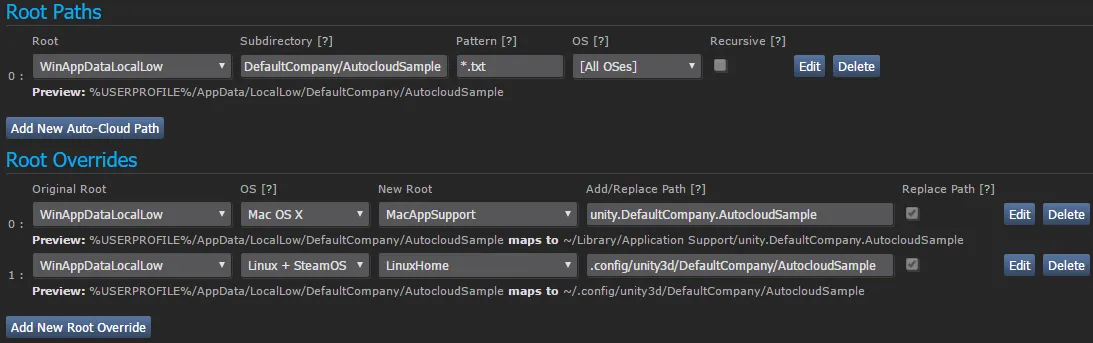
- See how there’s a “Preview” below each path? Make sure those paths actually exist on your machine since that’s where Steam will look for the save files.
- The reason I mention double slashes is because
MacHomeonly expands to~, not~/likeLinuxHomedoes, so you can’t just copy/paste paths (or maybe you can and Steam or your OS handles it for you; I didn’t test it).
- The reason I mention double slashes is because
- Don’t use
MacHomeand then specify “Application Support” afterward; useMacAppSupportwhich naturally expands to~/Library/Application Support/. - If you want cross-platform saves, it’s incredibly important that your root path has
[All OSes]specified. Valve has a note in the documentation saying:- “To enable cross-platform saves, you should instead define a single Root path (likely for Windows) […]”, which is super misleading since it doesn’t say what to set the dropdown to.
Scenarios you probably want to test
Section titled “Scenarios you probably want to test”- If you want to support cross-platform saves:
- Ensure that a save file from Platform A (e.g. Windows) works on Platform B (e.g. Linux)
- If you have a demo:
- Ensure that the demo save transfers automatically to the release version of the game.
- Multiple Steam users:
- Ensure that Steam User A’s save file doesn’t overwrite or conflict with Steam User B’s in any way. Note that if you use Auto-Cloud, it should ensure this for you.
- If you support multiple gaming stores (e.g. Itch):
- Ensure that a build from a non-Steam store doesn’t interact with Steam’s location for save files (since they’ll be overwritten by Steam at the next cloud sync)
- If you have local-only settings:
- Ensure that they don’t sync between devices. Examples of local settings would be video settings since it’s unlikely that all of your users will only roam between devices with the exact same resolution and graphics capabilities.
Troubleshooting
Section titled “Troubleshooting”Files won’t sync
Section titled “Files won’t sync”- ⚠️ Make sure you test using the correct accounts! E.g. I have a developer account and a “normal user” account, so I just needed to be on the same account on both of my devices.
- If using Auto-Cloud, make sure your configuration is correct.
- Is your game indeed saving to that location?
- Are your saves supposed to be cross-platform? If so, do you have a root configuration that has “All OSes”?
- ⚠️ I had it happen to me where I made a root path of “Foo/Bar”, then I overrode those for each OS. However, I later modified the root to be just “Foo” (i.e. I dropped the “/Bar”). This did not update the override paths!
- To verify that your raw configuration is what you expect, go to Steamworks → Misc. → View Raw Settings → choose “UFS” from the dropdown (e.g. this link). In my case, I had to delete the override with a stale “find” value and recreate it with exactly what had been inputted before, but this time, it updated correctly.
- Are you using the “Shared Cloud Storage” feature and pointing at an unreleased game? If so, you could potentially be hitting this issue (which I wrote some notes about above).